
TiviMaster IPTV Player is a media player designed to help users organise and watch their own IPTV content through a straightforward interface. Developed by Nexilium, the app supports M3U playlists, Xtream Codes API login, live TV, movies, series, favourites, and multi-screen viewing. It is intended for people who want to manage their streaming sources in one place rather than switch between separate applications.
The settings available in an IPTV player can make a significant difference to everyday use. Correct playlist configuration helps channels and categories load properly, while suitable playback preferences and organised favourites can make browsing more convenient. Electronic programme guide (EPG) support can also help users understand what is currently showing and what is scheduled next, provided their source supplies the required guide information.
This guide explains how to approach TiviMaster Settings, configure the app for your needs, manage your playlists, and resolve common problems. Menu names and available options may vary depending on your installed version and device.
1. How to Access TiviMaster Settings
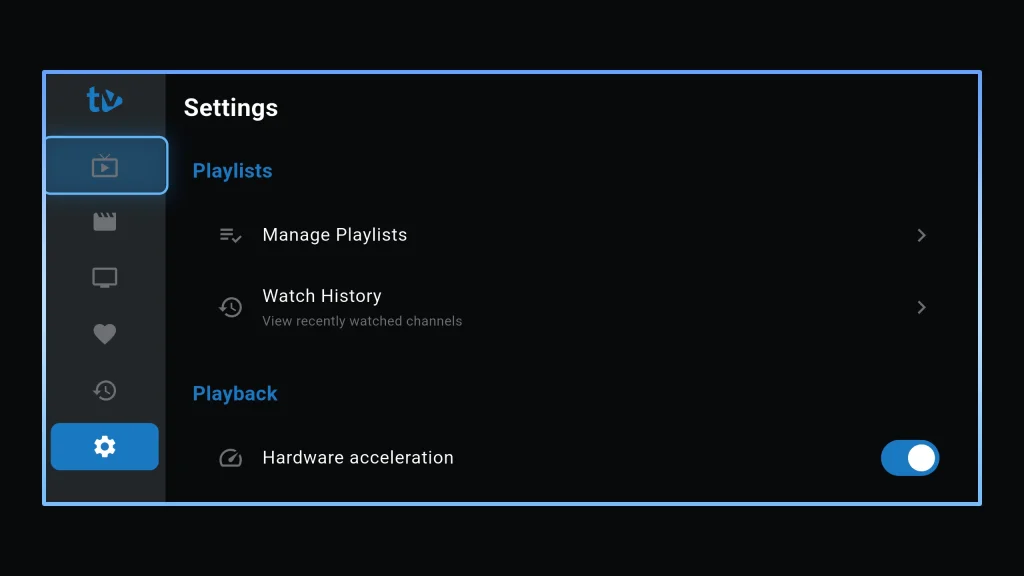
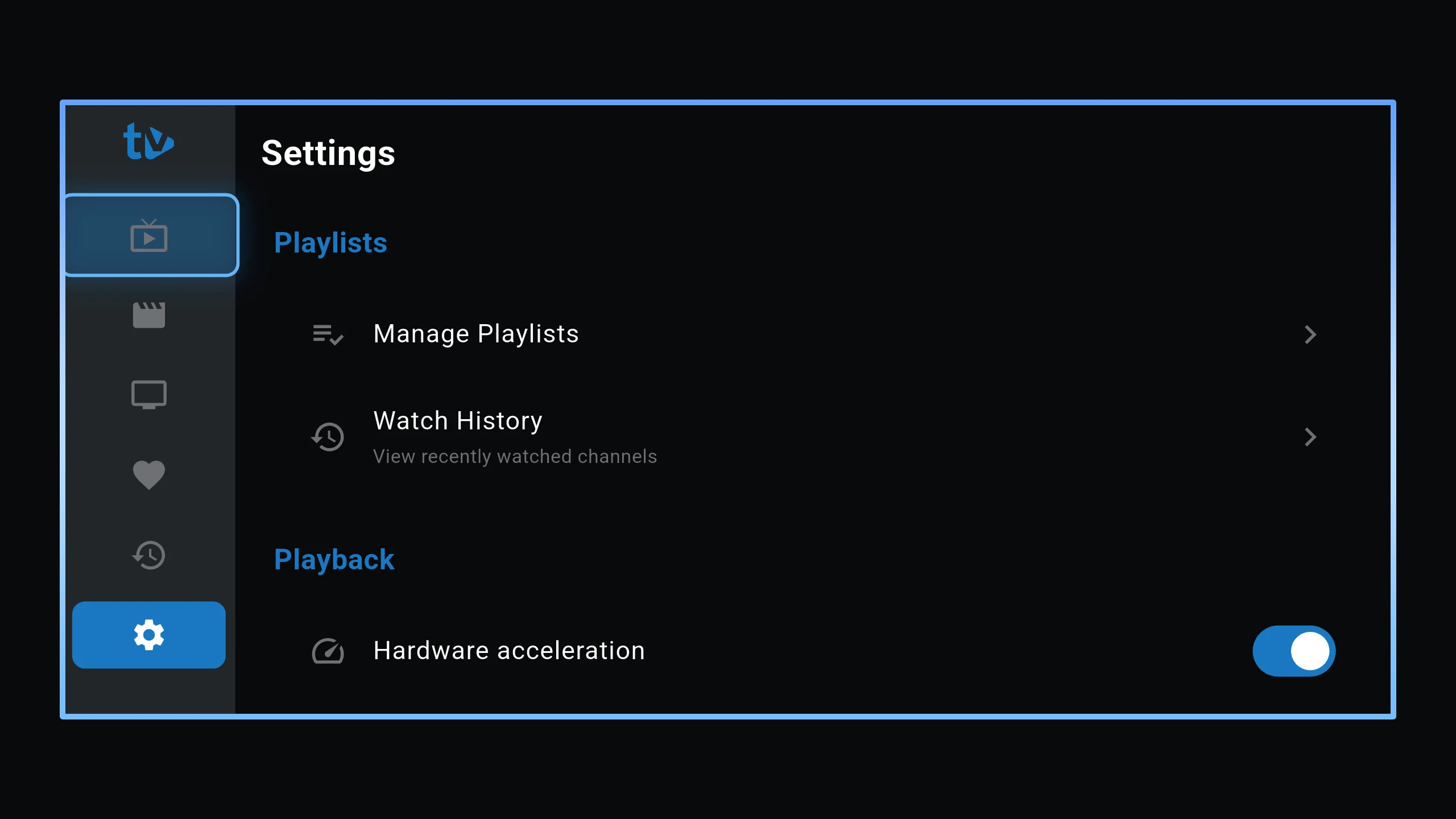
To begin customising TiviMaster, open the application on your compatible device and look through the main interface for its settings or configuration controls.
Depending on the device and app version, you may need to open a menu, select a settings icon, or navigate through the main screen using your TV remote.
Once you locate the settings area, look for options relating to playlists, content organisation, playback, account management, parental controls, or application information, where available.
Before making changes, it is a good idea to check that your IPTV playlist is working correctly. This gives you a useful starting point if you need to identify whether a later problem is caused by a configuration change or by your streaming provider.
Tip: Change one setting at a time and test playback after each adjustment. This makes it easier to identify which change improves or affects your experience.
2. Managing IPTV Playlists in TiviMaster
Playlist management is one of the most important parts of setting up an IPTV player. TiviMaster supports M3U playlist files or URLs and Xtream Codes API login details, allowing users to connect their own compatible streaming sources.
Adding an M3U Playlist
An M3U playlist contains references to channels or media streams supplied by a source. Your IPTV provider may give you a playlist URL or a downloadable playlist file.
To connect an M3U playlist:
- Obtain the playlist URL or file from a source you are authorised to use.
- Open TiviMaster and locate the playlist management or import option.
- Select the M3U playlist method if it is available.
- Enter the playlist URL or choose the supported local file.
- Save or import the playlist and allow the application to process it.
- Open the channel list and check whether the expected channels and categories appear.
If the playlist does not load, check that the URL has been copied correctly and that the source is still active. Some providers use expiring links or restrict access to particular networks or devices.
Connecting Through Xtream Codes API
TiviMaster also supports Xtream Codes API login. This method commonly uses details supplied by an IPTV provider, such as a server address, username, and password.
To configure a connection, select the Xtream Codes login method if presented, enter the required information, and submit the details. Make sure the server address is entered in the format specified by your provider.
A connection can fail because of an incorrect password, an outdated server address, an expired subscription, or a temporary service outage. Contact your provider if the supplied credentials no longer work.
Organising Your Playlists
Keeping playlists organised makes it easier to switch between different sources and find the content you want. TiviMaster’s published feature list includes playlist importing and content organisation. The exact management controls available may depend on your version and account.
If your version supports playlist renaming or reordering, use clear names to identify each source. Remove obsolete playlists only when you are sure you no longer need them, and retain your original login details somewhere secure.
Remember that adding a playlist connects the player to a source; it does not guarantee that every channel or stream in that source will work.
3. Configuring Live TV and Channel Preferences
A well-organised channel list can make daily viewing much easier, particularly when a playlist contains hundreds or thousands of entries.
TiviMaster supports live TV playback and favourite content management. After importing a playlist, browse the available channel groups and identify the categories you use most often.
Using Favourite Channels
Favourite channels provide a convenient way to return to frequently watched content without repeatedly browsing the entire playlist.
To manage favourites:
- Open a channel from your imported playlist.
- Look for the available favourite or bookmark control.
- Mark the channel as a favourite if the option is provided.
- Open the favourites section to check that it has been added.
Use favourites for channels you watch regularly, such as news, sports, documentaries, or entertainment. The available categories will depend on your own playlist.
If a favourite channel stops working, check the original playlist first. Saving a channel as a favourite does not change the underlying stream or repair a broken source.
Improving Channel Navigation
If your playlist contains many channels, use available categories and search controls to find content more quickly. Remove or hide unwanted categories only if your version provides that functionality.
Avoid importing duplicate playlists unnecessarily, since repeated entries can make navigation confusing and may increase the time needed to process a large list.
4. Understanding EPG Settings
An electronic programme guide, commonly called EPG, displays programme information associated with supported TV channels. Depending on the source and guide data available, it may show programme titles, descriptions, schedules, and current or upcoming broadcasts.
TiviMaster’s official website lists built-in EPG support among its features, while the exact controls available can vary by version and account.
How EPG Works
The player needs suitable programme-guide information from a supported source to display schedules. An imported channel playlist alone may not contain all the information needed for a complete guide.
If the guide is empty or incomplete, check the following:
- Confirm that your IPTV source supplies compatible EPG data.
- Check whether the playlist or provider configuration includes the correct guide information.
- Allow time for the guide to load, especially after adding a new source.
- Check whether the programme schedule is available for the channels you are viewing.
- Contact your provider if its guide data is missing or outdated.
Why Programme Information May Be Incorrect
EPG information can be missing or appear at the wrong time when channel identifiers do not match the guide data, the provider has outdated schedules, or time-zone information is incorrect.
If TiviMaster offers guide refresh or time-related controls in your installed version, use them as appropriate. Otherwise, ask your provider to check the playlist and programme-guide configuration.
A player cannot display accurate programme information that its source does not supply.
5. Adjusting Playback and Streaming Preferences
Playback quality depends on several factors, including the stream itself, your internet connection, your device’s processing capabilities, and the media format being used.
TiviMaster advertises fast video playback, but actual performance depends on these external conditions. Available playback settings may differ across versions and devices, so use only controls shown in your installation.
What to Do About Buffering
Buffering occurs when playback pauses while the player waits for more data. It can be caused by a slow connection, an overloaded streaming server, Wi-Fi interference, or a stream that is no longer available.
Try these steps:
- Test another channel from the same playlist.
- Check whether other devices on your network can stream normally.
- Move closer to your Wi-Fi router or use a wired connection where supported.
- Restart the application and retry the stream.
- Restart your router if other services are also experiencing network problems.
- Contact your IPTV provider if only its streams are affected.
If your version provides playback or decoder options, change them only when you understand their purpose and can test the result. Do not assume that increasing a buffer setting will fix every streaming issue.
Choosing Video Quality
Some streams are available in different resolutions, but the available quality options depend on the provider and stream format. If a particular channel consistently struggles to play, ask your provider whether a lower-bandwidth alternative is available.
A faster internet connection may help when bandwidth is the limitation, but it cannot correct a broken stream or a server-side outage.
6. Using Multi-Screen Viewing
TiviMaster lists multi-screen live TV support among its advertised features. This can be useful for people who want to monitor more than one live stream at the same time, where the installed version and device support the feature.
Multi-screen viewing can place greater demands on your network, device memory, processor, and streaming source. The effect is more noticeable when several high-resolution streams are playing simultaneously.
For a better experience:
- Use a stable internet connection.
- Close applications that are consuming significant device resources.
- Start with fewer simultaneous streams and increase the number only if playback remains stable.
- Check whether your provider permits simultaneous connections.
- Remember that each stream may consume additional data.
If one or more screens stop loading, test each channel individually. This helps establish whether the problem relates to a particular stream, your connection, or the device’s ability to handle several streams.
7. Managing Movies and TV Series
TiviMaster supports browsing and playing movies and series supplied through compatible sources. The content visible in these sections depends on the playlist or Xtream Codes account you have connected.
If movies or series do not appear, check whether your source actually includes video-on-demand content. Some playlists contain live TV channels only.
If the content list appears incomplete, verify your connection details and refresh or reload the source using the controls available in your version. You can also ask your provider to confirm that the relevant video-on-demand categories are enabled.
A missing movie or series does not necessarily indicate a problem with TiviMaster itself. The content may be unavailable, removed from the source, or excluded from your provider’s service.
8. TiviMaster Premium and Extended Settings
TiviMaster’s official website describes an optional Premium account with extra features. These include multiple playlist support, advanced EPG controls, favourites and custom categories, playback history and progress tracking, parental controls, and cross-device login on supported platforms.
The website advertises Premium at $20 per year, but you should check the current official pricing and terms before purchasing, as offers and availability may change.
Premium features are separate from access to IPTV channels. Purchasing a player upgrade does not automatically provide a playlist, streaming subscription, or permission to view copyrighted material.
Is Premium Necessary?
Whether Premium is worthwhile depends on how you use the application.
A basic setup may be sufficient if you use one playlist and only need to browse and watch compatible live TV or video-on-demand content. Users who manage multiple sources or want the additional features advertised for Premium may find the upgrade more useful.
Review the current feature list before subscribing, and confirm that the features you need are available on your device.
9. Setting Up Parental Controls
Parental controls can help households manage access to certain content. TiviMaster’s website lists parental controls among the features available with Premium.
If parental controls are available in your version, look for the relevant option in the settings or account area. Follow the instructions provided by the application to configure access restrictions and protect any PIN or password you create.
A few sensible precautions can help:
- Choose a PIN that is not easy to guess.
- Avoid sharing the PIN with people who should not change the restrictions.
- Check whether restrictions apply to channels, categories, or other content areas.
- Test the configuration after saving it.
- Review restrictions when household needs change.
The controls available in the player may not cover every content source. If a playlist contains inappropriate or unsuitable material, you may also need to manage access through your IPTV provider or device-level parental controls.
10. Account Management and Cross-Device Use
The TiviMaster website describes account-based Premium access across supported Android and iOS devices. It also advertises playlist and settings continuity for users who log in to an account.
Available synchronisation features may depend on your plan, platform, app version, and account status. Check the current documentation before assuming that every setting or playlist will transfer automatically between devices.
When signing in on another device:
- Install TiviMaster from an official distribution source.
- Open the account or login area, if available.
- Sign in using your existing account credentials.
- Check your Premium status and available features.
- Confirm that your playlists and preferences are present.
- Re-enter source details if they have not transferred.
Keep account credentials private. If you experience an account or activation problem, use the support information provided on the official website or Google Play listing.
11. Troubleshooting Common TiviMaster Settings Problems
TiviMaster Is Not Loading Channels
Start by checking your internet connection and the status of your playlist. Confirm that the playlist URL or Xtream Codes credentials are correct and that your source remains active.
If only a few channels fail, the issue may be with those individual streams rather than the application.
The Playlist Imports but Shows No Content
Check that the playlist is valid and contains entries in a format supported by TiviMaster. Verify that you have imported the intended source and that it has not expired.
If the playlist comes from a provider, request a fresh link or ask for help checking the source configuration.
The EPG Is Empty
Confirm that the provider supplies compatible guide data. Check any guide configuration or refresh options shown in your version, and allow time for the data to load.
If only some channels lack programme information, the issue may be with their guide mappings or the provider’s schedule data.
Video Playback Is Stuttering
Test a different channel, check your network, and restart the application. If the problem affects only one source, contact the provider. If it affects all streams, investigate your connection and device performance.
The App Closes Unexpectedly
Check for an available app update, restart your device, and make sure sufficient storage space is available. On Android, clearing the app cache through system settings may help with some temporary issues.
Be careful with Clear data or uninstalling the app, as these actions may remove local settings or require you to add your playlists again.
Premium Features Are Missing
Verify that you are signed in to the correct account and that your Premium purchase or subscription is active. Check the current plan details and device compatibility.
If the account still does not show the expected access, contact TiviMaster support with your device type, app version, and a description of the issue. Do not send your password or full payment details.
12. Privacy and Safe Streaming Practices
When configuring an IPTV player, use trustworthy sources and protect your login information. Only add playlists and streams that you are authorised to access.
Avoid sharing account credentials publicly or downloading modified application packages from unknown websites. Official installation sources reduce the risk of installing an altered or unsafe app.
If you use a third-party IPTV service, review its privacy practices and terms separately. The player’s settings cannot guarantee that an external provider handles your information securely.
TiviMaster is a player, not a supplier of television channels, movies, or subscriptions. Users are responsible for ensuring that their chosen sources are lawful and that they have the appropriate rights to access the content.
Frequently Asked Questions About TiviMaster Settings
Where can I find TiviMaster Settings?
Open TiviMaster and look for the settings, menu, or configuration controls on the main interface. The exact location may differ between mobile devices, Android TV, and app versions.
How do I add a playlist to TiviMaster?
Use the playlist import option to add a compatible M3U file or URL, or select the Xtream Codes API login method and enter the details supplied by your provider.
Does TiviMaster support EPG?
Yes. TiviMaster advertises built-in EPG support. The guide’s completeness and accuracy depend on whether your selected source provides compatible programme information.
How can I fix buffering in TiviMaster?
Check your connection, test other channels, restart the app, and verify whether the source is experiencing an outage. If only one provider’s streams buffer, contact that provider.
Can I use multiple playlists?
TiviMaster supports playlist importing and management. Its official website advertises multiple-playlist support as a Premium feature, so check the current plan details and your installed version.
Does TiviMaster include live TV channels?
No. TiviMaster is an IPTV player and does not supply channels, playlists, or streaming subscriptions. You must add your own authorised source.
Does TiviMaster have parental controls?
The official website lists parental controls among its Premium features. Availability and the exact configuration options may depend on your app version and device.
Can I transfer TiviMaster settings to another device?
The official website advertises cross-device account access and continuity for supported features. Check whether the specific settings and playlists you use are synchronised, as not every item is necessarily transferred.
Is TiviMaster Premium the same as an IPTV subscription?
No. Premium unlocks eligible application features. It does not provide television channels or replace a subscription to a separate IPTV provider.
Conclusion
TiviMaster Settings can help you organise playlists, manage favourite channels, work with programme-guide information, and make the most of the playback and account features available in your version of the app.
For the best results, start with a reliable playlist, verify your connection details, organise the channels you watch regularly, and troubleshoot playback problems one step at a time. If an option mentioned in this guide is not visible, check the current app version and official documentation rather than assuming that every device offers the same controls.
To learn more about the application, visit the official TiviMaster website or download it through Google Play.
Developer: Nexilium
Website: https://tivimaster.com/
Google Play: https://play.google.com/store/apps/details?id=com.nexilium.tivimaster